Online payments with Azul
How to turn on online card payments — what Azul asks for, what RedBox prepares for you, and what to do when your credentials arrive.
Azul is the processor that lets you take card payments online: reservations and orders your customer pays from their phone, without standing at the terminal. Turning it on is a process with Azul rather than a setting inside RedBox — but we prepare almost all of the paperwork for you.
Before you start
- An active paid licence. Integrations unlock with it.
- The
Administrar integracionespermission on your user. - Your signature on paper, photographed or scanned — only if you are going to request activation.
- A message already sent to your Azul representative — that is step one, unless you already hold your credentials.
The process
Already have Azul credentials?
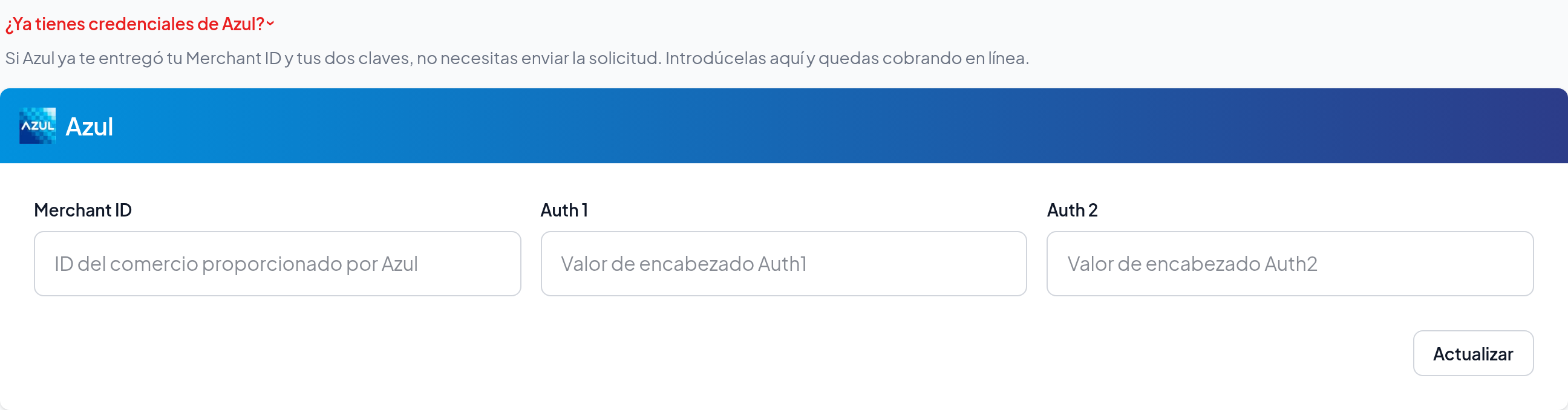
If Azul has already given you your Merchant ID, Auth 1 and Auth 2 — because you were already working with them, or because you handled the activation yourself — there is nothing to request. Go to Integraciones → Azul, open ¿Ya tienes credenciales de Azul? below the request form and save them there. You can skip steps 1 through 4.
Write to your Azul representative
Ask them to enable online payments for your business. Azul will reply asking for three things:
- The link to the website where payment is taken.
- An example of the receipt the customer receives and a capture of the payment page.
- The PCI DSS (SAQ-D) questionnaire, filled in and signed.
RedBox prepares all three in the next step. You do not have to assemble anything yourself.
Fill in the request
Go to Integraciones → Azul. Most fields come prefilled from what we already know about your account, but check them: they go straight into the PCI questionnaire Azul is going to read.
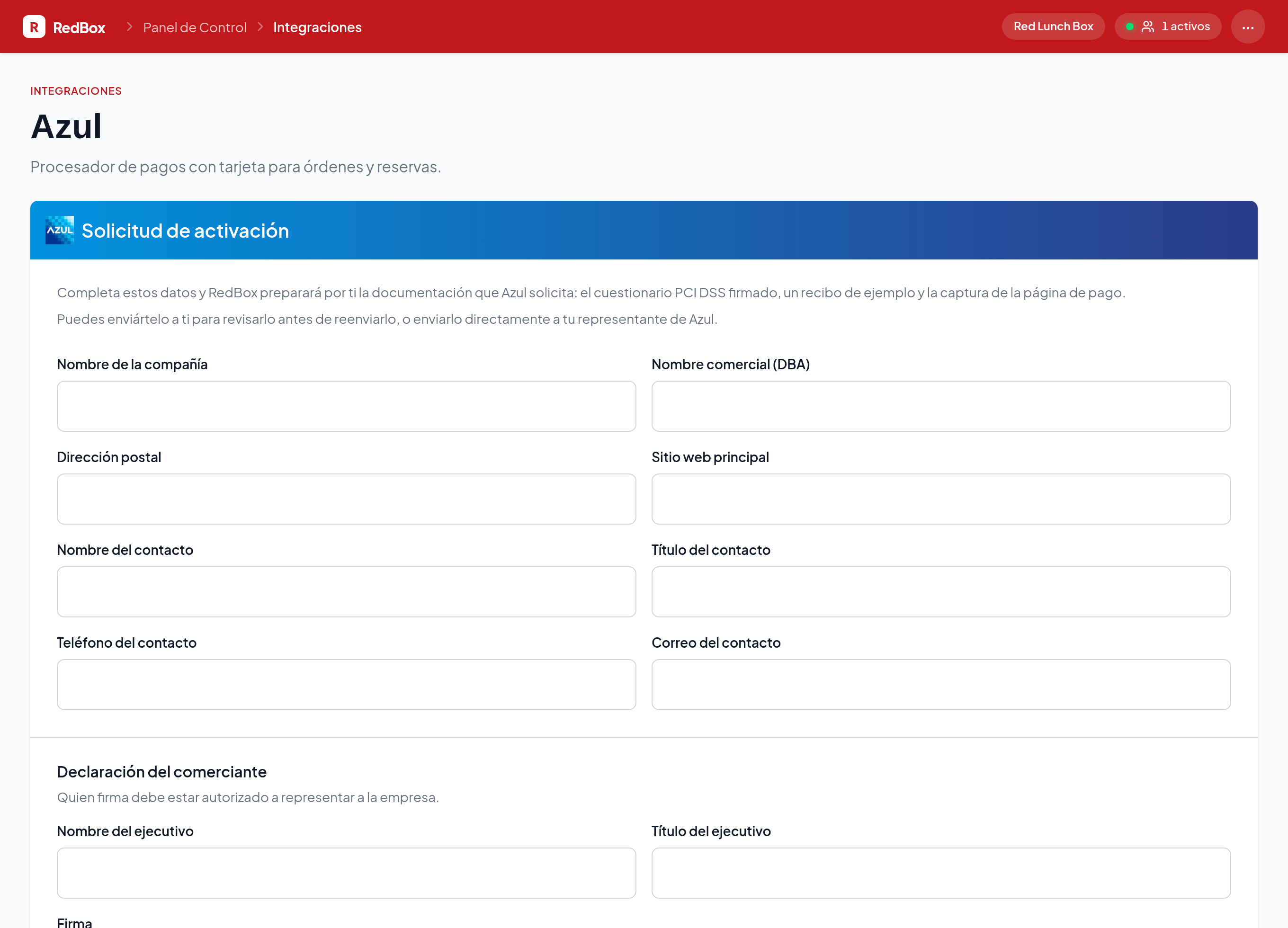
Further down, under Declaración del comerciante, goes the name and title of whoever signs. It must be someone authorised to represent the company.
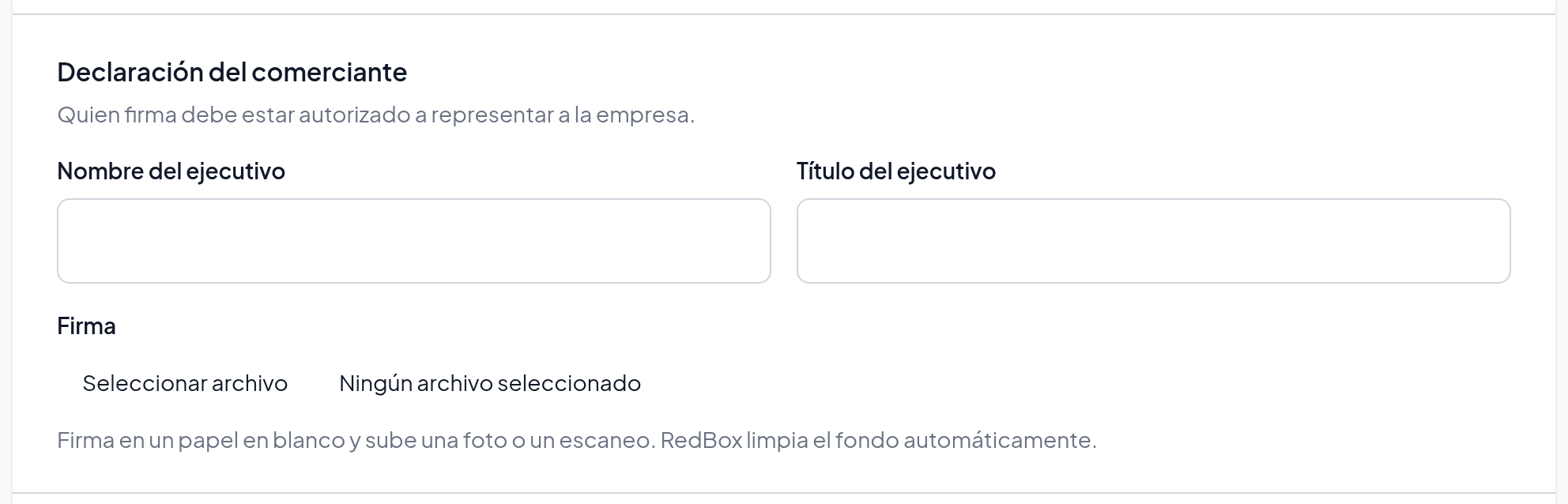
The signature goes in as an image
Sign a blank sheet of paper and upload a photo or a scan, in PNG or JPEG. RedBox clears the background automatically and places it in the form. It is a handwritten signature because that is what the declaration requires.
Choose who we send it to
The last field, Send to, decides the recipient:
- Empty — we send it to you, at the contact email address. You review it and forward it to your representative yourself.
- Your representative's address — we send it to them directly.
Either way the email goes out with replies pointed at your contact address, so if Azul replies, they reply to you and not to RedBox.
Wait for Azul
This is the slow part, and it depends on neither RedBox nor you. Keep selling as normal in the meantime.
The page shows the date you submitted the request, when it was last sent and to which address, in case you need to follow up.
Enter your credentials
Azul will hand you three values: Merchant ID, Auth 1 and Auth 2. Save them on that same page and you are taking payments online.
Once you save them the request disappears from the screen. That is not an error: the activation is over and there is nothing left to resend.
What reaches Azul
A single email, subject Solicitud de activación de pagos en línea followed by your company name, with three attachments:
| File | What it is |
|---|---|
saq-d-pci.pdf | The PCI DSS SAQ-D questionnaire, with your details in Part 1a and your signature on the Part 3b declaration |
recibo-ejemplo.png | An example of the receipt the customer receives |
pagina-de-pago.png | A capture of the page where payment is taken |
The details we ask you for
| Field | What it is used for |
|---|---|
| Company name | The legal name, as it should read on the questionnaire |
| Trading name (DBA) | The name the business operates under publicly |
| Postal address | The merchant's registered address |
| Main website | The link Azul reviews. Prefilled with your booking and payment page |
| Contact: name, title, phone and email | Who answers for the process. Azul's replies go to that address |
| Executive: name and title | Who signs the merchant declaration |
| Signature | The image of your handwritten signature |
Manual card entry
Once your credentials are set up, RedBox leaves paying by typing card details turned off. That is deliberate: you turn it on when you decide to, from Integrations → Azul, with the Activate button on the "Manual card entry" card.
With it on, your customers see the card form at checkout and can pay by typing the number, expiry date and security code. With it off, that form does not appear and they can only pay with whichever wallets you have enabled — Google Pay or Apple Pay.
If you turn it off with no wallets enabled
Your checkout stops accepting online card payments: your customers will see their bill, but no way to pay it.
If something goes wrong
Need help?
Get in touch at any point in the process. We have walked customers through this many times and know what Azul usually asks.